YouTube Tags Strategy

YouTube Tags vs Hashtags — What's the Difference and Which Matters More?

Tags and hashtags are both metadata — but they work completely differently on YouTube. One is hidden from viewers and feeds the algorithm. The other is visible in your description and drives hashtag search. Confusing them — or ignoring the distinction — is one of the most common YouTube metadata mistakes creators make.
By YTTAGGEN Team Last updated: March 2026 11 min read
YouTube tags vs hashtags comparison diagram showing the difference between tag field and description hashtags
Tags and hashtags serve completely different discovery functions — understand both

1. What Are YouTube Tags?

YouTube tags are hidden keyword labels added in the Tags field in YouTube Studio — under Video Details → More Options. Viewers watching your video cannot see them. They exist purely as a metadata signal to YouTube's algorithm.

This guide covers: YouTube hashtags explained, when to use hashtags vs tags, hashtag character limits YouTube, tags hidden metadata vs visible hashtags, do hashtags boost discoverability, hashtag best practices YouTube, tags on shorts vs longform, hashtag placement description vs tag field, hashtag indexing YouTube.

Tags tell the algorithm what your video is about, help it categorise your content for search and suggested placements, and cover misspellings or abbreviations of your topic. They're limited to 500 characters total across all tags.

📍 Where Tags Live

YouTube Studio → Video Details → More Options → Tags field. Not visible on the public video page. Use YTTAGGEN to fill this field with optimised, autocomplete-backed tags.

2. What Are YouTube Hashtags?

YouTube hashtags are publicly visible, clickable labels added in your video description, starting with #. They appear in two places: inside your description as clickable links, and — for the first three hashtags — overlaid above your video title on the watch page.

When a viewer clicks a hashtag, they're taken to a YouTube search results page showing all public videos using that hashtag. This creates a content discovery pathway separate from standard keyword search.

👁️ The First 3 Hashtags Are Prime Real Estate

YouTube displays your first 3 hashtags directly above the video title on the watch page — visible to every viewer before they even read your description. These three visible hashtags are a public-facing metadata decision, not just a backend signal. Choose them carefully.

3. The 5 Key Differences

Tags vs Hashtags — Full Comparison

Tags

Hashtags

Visibility

Hidden from viewers

Visible in description + above title

Location

Tag field in Studio

Video description (# prefix)

Character Limit

500 characters total

Max 15 (3 shown above title)

Clickable?

No — algorithm only

Yes — links to hashtag search page

Primary Purpose

Algorithm topic signal

Discovery + community navigation

4. When to Use Tags — The Right Approach

Use the Tags field for keyword phrases that match real search queries. Your tags should be 2–5 word phrases that mirror how people actually search on YouTube. They tell the algorithm what specific topic your video addresses.

The core principle: tags are for search intent signals, not branding or trending topics. Good tags are specific, relevant, and based on actual search patterns — which is why tools that pull from YouTube autocomplete (like YTTAGGEN) produce better results than guessing.

✅ Good Tag Examples

how to make pasta from scratch, easy pasta recipe beginners, homemade pasta without machine, pasta carbonara recipe, Italian cooking tutorial — all specific, intent-matched, 2–5 words.

❌ Bad Tag Examples

cooking, food, YouTube, trending, viral, recipe — all too broad or generic to send meaningful topic signals. They don't tell the algorithm anything specific about your video.

5. When to Use Hashtags — Best Practices

Hashtags serve a different purpose: they create clickable navigation paths for viewers, connect your video to content communities, and make your video discoverable through hashtag browsing.

🏷️ Niche Community Hashtags

Use hashtags that connect your video to an active content community — #veganrecipes, #gamingmontage, #financetips, #techreview. These build category association and are discoverable through hashtag browsing.

📌 Branded Channel Hashtags

Creating a consistent hashtag for your channel (#YourChannelName) and using it on every video builds a searchable archive over time. Viewers can click your branded hashtag to see all your content.

📢 Trending Topic Hashtags

When a relevant topic is trending, adding its hashtag can drive additional discovery. But only use trending hashtags that are genuinely related to your video content — misleading hashtag use can trigger policy review.

How many hashtags to use: YouTube recommends keeping it to 3–5 relevant hashtags. More than 15 hashtags causes YouTube to ignore all of them — a real penalty. Keep your hashtags focused and meaningful.

6. Tags vs Hashtags for YouTube Shorts

YouTube Shorts have a slightly different metadata dynamic. Shorts discovery is primarily feed-driven, not search-driven — which means both tags and hashtags play a smaller role than they do for long-form content.

For Shorts specifically: use 3–5 tags in the tag field (broad category + specific niche), and use 2–3 hashtags in the description including #shorts or #ytshorts. Keep metadata lean — over-tagging a Short with long descriptive tags can introduce noise.

📱 The #shorts Tag Debate

You don't technically need to tag #shorts for YouTube to classify your video as a Short — the algorithm detects the format automatically by the 60-second or under duration. That said, including #shorts in your description hashtags costs nothing and may help visibility in hashtag search results.

A Practical Workflow: Using Both Tags and Hashtags Correctly

Most creators either ignore tags entirely, ignore hashtags entirely, or confuse the two. Here's a practical workflow that uses both correctly — this is the process we recommend to every creator regardless of channel size.
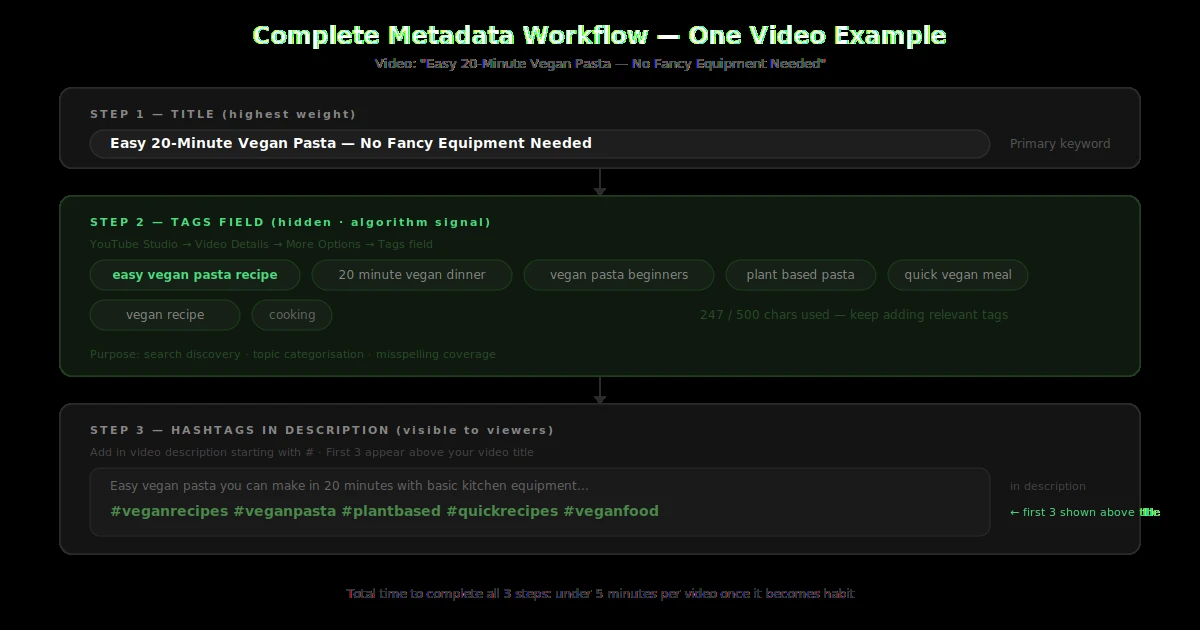
Complete YouTube metadata workflow showing title tags field and description hashtags for one video example
The complete 3-step metadata workflow — title first, tags field second, hashtags in description third

Let's use a real example: a cooking video titled "Easy 20-Minute Vegan Pasta — No Fancy Equipment Needed."

Step 1: Title (most important)

"Easy 20-Minute Vegan Pasta — No Fancy Equipment Needed"

Primary keyword in title: "easy vegan pasta." This is what YouTube's NLP reads first and weights most heavily.

Step 2: Tags (hidden — algorithm signals)

easy vegan pasta recipe 20 minute vegan dinner vegan pasta for beginners quick vegan meal plant based pasta vegan recipe 2026

Purpose: confirms search intent, covers variations, helps with categorisation. Added in the Tags field in YouTube Studio under More Options.

Step 3: Hashtags in description (visible — community discovery)

#veganrecipes #veganpasta #plantbased #quickrecipes #veganfood

Purpose: visible to viewers, clickable, connects to the vegan food community. First 3 appear above the video title. Use niche community hashtags, not generic ones (#food = 50 million videos; #veganpasta = far more targetted).

A few additional distinctions worth understanding:

Tags on Shorts vs Long-Form Videos

Tags on Shorts vs long-form videos serve different purposes. For Shorts, tags play a smaller role since Shorts discovery is feed-driven. The #shorts tag vs tag field difference is significant — adding #shorts to your description classifies the video and connects it to the Shorts ecosystem; adding "shorts" in your tag field has no such classification power.

Hashtag SEO vs Tag SEO

Hashtag SEO vs tag SEO: hashtags create a secondary discovery surface (the hashtag results page) while tags primarily influence main search ranking. Metadata vs caption features: tags live in metadata (hidden); hashtags live in captions/descriptions (visible). Both matter; neither replaces the other.

Branded Hashtag Strategy

A branded hashtag strategy on YouTube involves creating a unique hashtag for your channel (#YourChannelName) and using it consistently across all videos. Over time, this creates a searchable archive of your entire content library under one hashtag — viewers can find all your videos by searching your branded hashtag.

How Hashtags Affect Recommendations

How hashtags affect recommendations: YouTube uses hashtags as an additional categorisation signal — videos sharing the same relevant hashtag may be recommended together. This is separate from how tags influence suggestions. Using niche-specific hashtags increases the chance of appearing alongside similar content in hashtag discovery.

This three-step approach takes under 5 minutes per video once it becomes habit. The tags and hashtags serve completely separate functions — never replace one with the other.

The Most Common Tags vs Hashtags Mistakes (And How to Fix Them)

After auditing hundreds of YouTube channels, these are the five mistakes that come up most consistently — and every one of them is easily fixable once you understand the distinction between tags and hashtags.

Mistake 1: Leaving the tag field empty and only using hashtags

Hashtags in your description don't fill the Tags field. Many creators assume they do. They don't. You need to actively fill the Tags field in YouTube Studio under More Options — hashtags in the description serve a completely different function. Here's exactly how to add tags in Studio.

Mistake 2: Using more than 15 hashtags

YouTube's policy: if a video has more than 15 hashtags in the description, YouTube will ignore all hashtags on that video. Not reduce their effectiveness — ignore them completely. Keep to 3–5 focused, niche-relevant hashtags for maximum effect.

Mistake 3: Using hashtags in the Tags field

Some creators add "#cooking" or "#gaming" in the Tags field with the # symbol. YouTube strips the # and treats them as regular tags — but it signals to the algorithm that you don't understand your own metadata, which isn't a good look. Keep hashtags in the description only.

Mistake 4: Using only #shorts as a hashtag for Shorts

YouTube auto-detects Shorts by duration — you don't need #shorts to classify the video. What you do need is 2–3 niche hashtags alongside it. "#shorts #gaming #valorant" is better than just "#shorts" because it gives Shorts viewers browsing the feed context for what they're about to watch.

Get Your Tag Strategy Right From the Start

YTTAGGEN handles the Tags field — enter your video title and get an optimised set from real YouTube search data. Handle your hashtags separately in your description.

Generate Tags Free →

7. Frequently Asked Questions

Should I use hashtags or tags on YouTube?

Use both — but for different purposes. Tags (hidden) are your algorithm search signals. Hashtags (visible, in description) are for community discovery and viewer navigation. They complement each other; neither replaces the other.

Do hashtags replace tags on YouTube?

No. Hashtags and tags are completely separate metadata systems. Hashtags in your description do not fill the Tags field, and vice versa. You need to actively manage both.

How many hashtags should I add in my description?

3–5 is optimal. YouTube displays your first 3 above the video title. Using more than 15 hashtags causes YouTube to ignore all hashtags on that video — a clear penalty. Quality and relevance beat quantity.

Are YouTube tags same as hashtags?

No — they are fundamentally different. Tags are hidden metadata in a dedicated field in YouTube Studio. Hashtags are public, clickable # labels placed in your video description. Both serve different discovery functions.
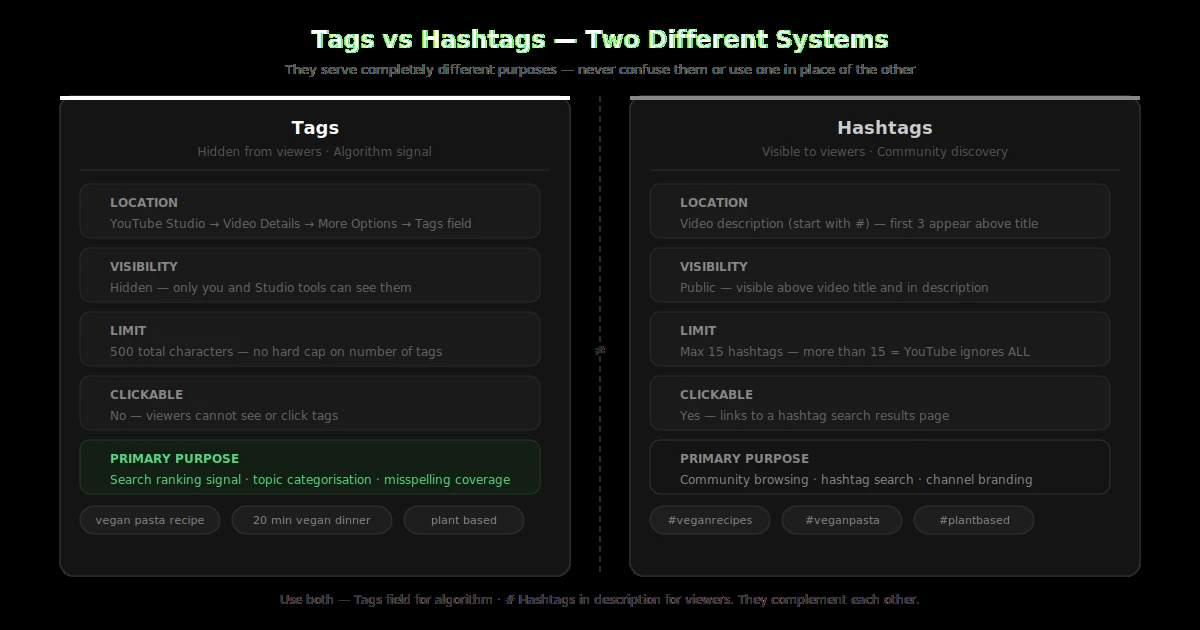
Side by side comparison of YouTube tags hidden algorithm signal vs hashtags visible community discovery
Tags (hidden, algorithm signal) vs Hashtags (visible, clickable, community discovery) — two completely separate systems

Related Guides

Do Tags Still Matter? →

Algorithm breakdown

How Many Tags to Use →

The 500-char strategy

How to Add Tags in Studio →

Step-by-step 2026 guide

← Free Tag Generator

Generate your tag set now