YouTube Tags Strategy

How to Add Tags to YouTube Videos in YouTube Studio (Step-by-Step)

Adding tags to YouTube videos takes about two minutes — but knowing exactly where the field is in YouTube Studio, how the character limit works, and what order to add your tags makes the difference between metadata that helps and metadata that wastes space. This guide covers it step by step, for both desktop and mobile.
By YTTAGGEN Team Last updated: March 2026 11 min read
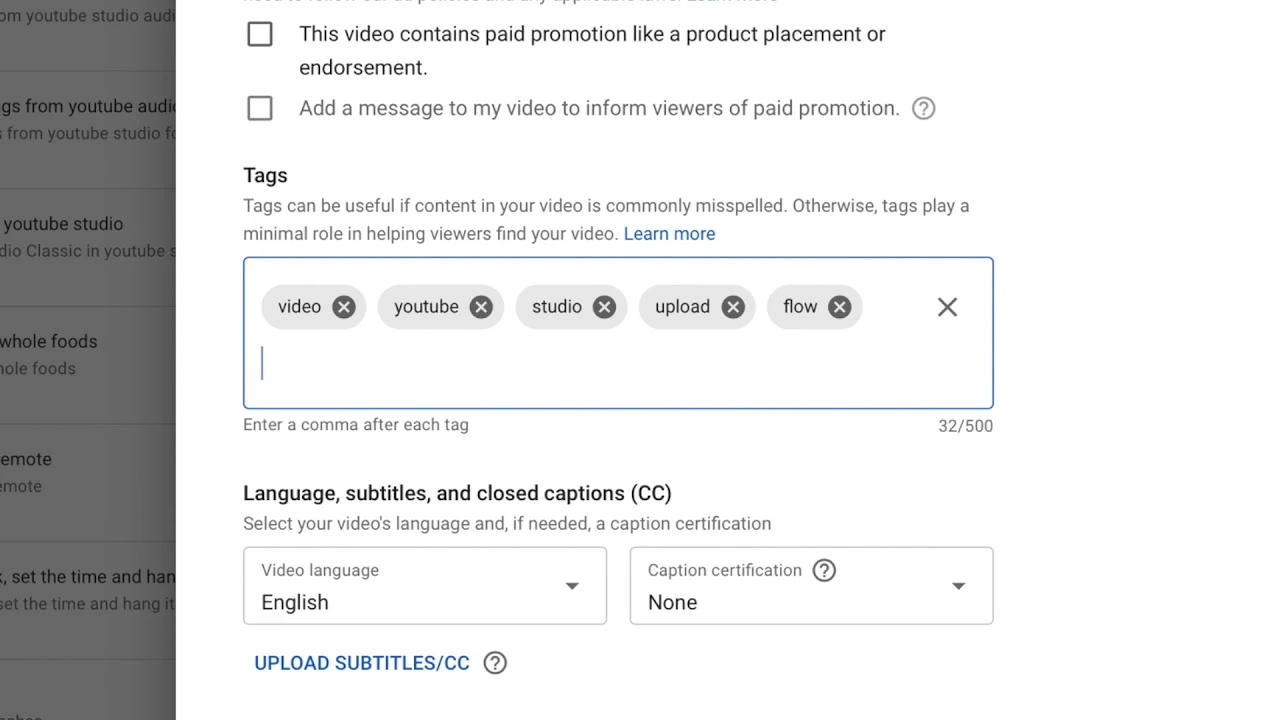
YouTube Studio desktop interface showing the Video Details panel with the tags input field visible under the More Options section
YouTube Studio — Video Details → scroll down → click More Options → the Tags field appears here. Most creators miss it because it requires this extra click to reveal.

1. Adding Tags to a New Video Upload

When uploading a new video, the tag field is available during the upload flow — but only after clicking 'Show More' in the Details step. Here's the optimal workflow for new uploads:

01

Prepare your tags before uploading

Use YTTAGGEN to generate your tag set before you start the upload. Enter your planned video title and copy the generated tags. This way you're ready to paste immediately.

02

Start your upload and fill in title/description

Set your title and description first — these are the most important fields and should be completed before tags.

03

Click 'Show More' → Tags field

Scroll down in the Details step, click 'Show More', and paste your pre-generated tag set into the Tags field.

04

Verify the character count

The counter below the Tags field shows your remaining characters. Aim to use 400–500 of your 500-character budget.

05

Complete the rest of the upload

Continue through thumbnails, monetisation, and visibility settings. Your tags are saved automatically.

Generate Tags YTTAGGEN first before upload Title & Desc most important fill in first Show More click to reveal tags field Paste Tags aim 400–500 char budget Publish tags saved automatically
Recommended upload sequence — generating tags before you start uploading means you're ready to paste them at step 3 without interrupting your workflow. The whole metadata step takes under 3 minutes using this order.

⏱️ Save Time With Pre-Generated Tags

The biggest time saving is generating tags before you upload, not after. Open YTTAGGEN, type your video title, copy the tags, then upload. Visit yttaggen.com to generate tags before your next upload.

2. Adding Tags to Existing Videos

You can add or update tags on any published video at any time. Going back through older videos and adding proper tags is one of the highest-ROI optimisation tasks for established channels — it improves existing content with zero additional production work.

01

Go to YouTube Studio → Content

Open studio.youtube.com and click Content in the left menu.

02

Click the video you want to edit

Click the video title or thumbnail to open the Video Details editor.

03

Click 'Show More' → Edit Tags field

Scroll down, click 'Show More', and update the Tags field with your new or improved tags.

04

Save changes

Click 'Save' in the top right. Changes typically take effect within a few hours — you may see search impression changes within 24–48 hours.

📈 Which Old Videos to Retag First?

Prioritise videos that already have decent watch time but low search impressions. These are videos the algorithm knows are good but hasn't fully classified for search yet. Check YouTube Analytics → Reach → Traffic Source: YouTube Search to find candidates.

3. How to Add Tags on Mobile (YouTube Studio App)

The YouTube Studio mobile app supports tag editing, but the interface is slightly different from desktop. Tags are accessible but not always immediately visible.

01

Open YouTube Studio app

Download the YouTube Studio app (separate from the main YouTube app) from the App Store or Google Play.

02

Tap your video → Edit

Go to Content, tap the video you want to edit, then tap the pencil/edit icon.

03

Scroll to find Tags

Scroll down in the edit screen. Tags appear below the Description field — you may need to scroll significantly on smaller screens.

04

Add tags and save

Tap the Tags field, type your tags separated by commas or tap Enter after each, then tap Save.
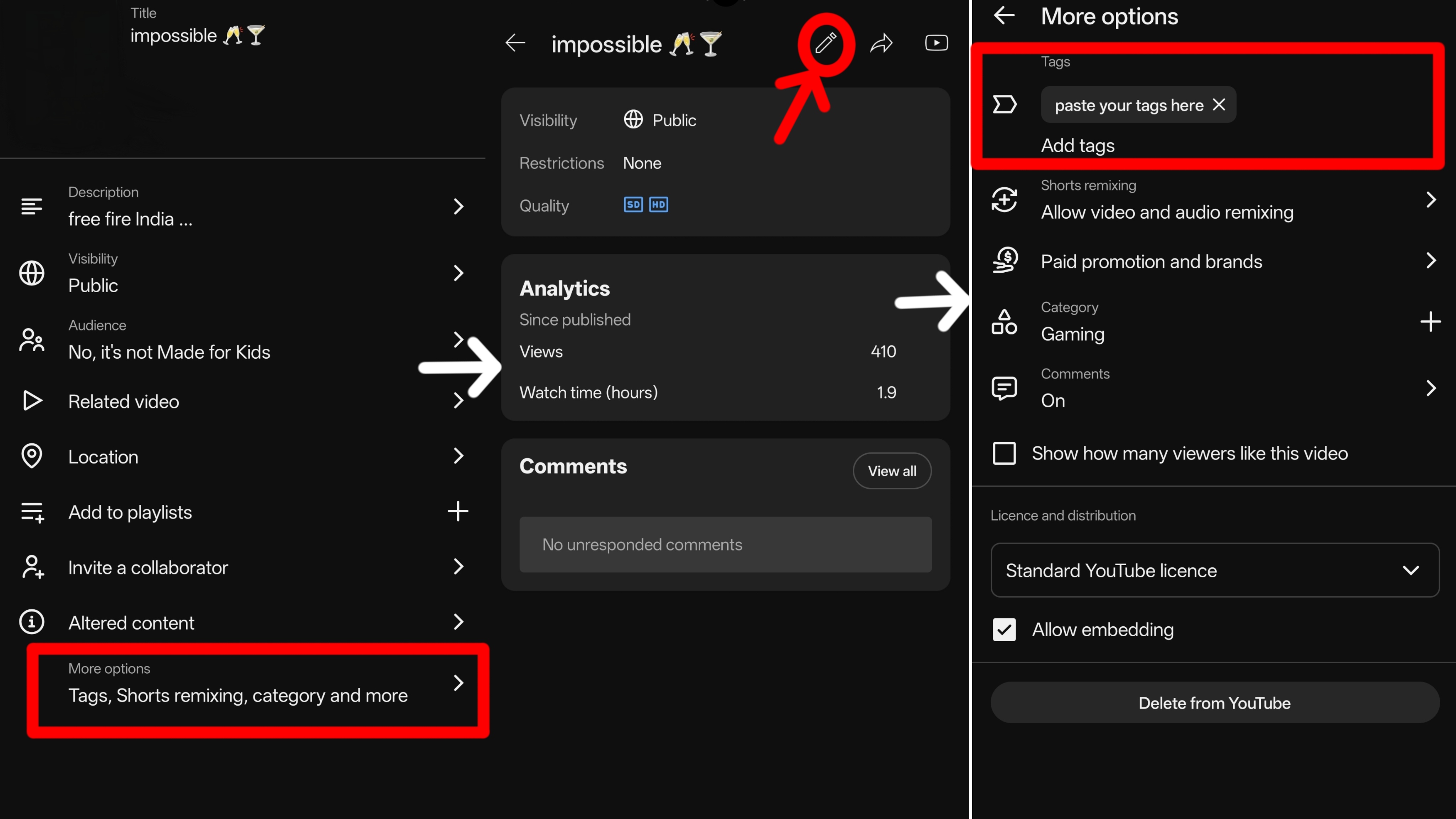
YouTube Studio mobile app on Android showing the video edit screen with the tags input field located below the description section
YouTube Studio mobile app — the tags field sits below the Description. On smaller phones you'll need to scroll past several fields to reach it. Tap the field, type your tags, and confirm each with a comma or return key.

Limitation: The mobile Studio app has a slightly simplified tags interface compared to desktop. For bulk editing or adding long tag sets, desktop YouTube Studio is faster and more reliable. Mobile is best for quick additions or corrections.

4. Bulk Editing Tags on Multiple Videos

YouTube Studio doesn't have a direct 'bulk tag all videos' button — but there is a bulk editing workflow that's faster than editing each video individually:

01

Go to Content in YouTube Studio

Click Content in the left sidebar to see your full video list.

02

Select multiple videos

Check the boxes next to multiple videos you want to update (up to 15 at once).

03

Click 'Edit' in the top action bar

With multiple videos selected, an 'Edit' button appears in the top action bar.

04

Choose 'Tags' from the bulk edit options

Select Tags from the list of editable fields. You can choose to add tags to existing tags or replace all existing tags.

05

Save changes

Your changes apply to all selected videos simultaneously.

Select Videos check boxes up to 15 at once Click Edit top action bar appears on select Select Tags from field list dropdown menu Add / Replace choose mode then Save
The bulk tag editing flow in YouTube Studio — select up to 15 videos, open Edit from the action bar, choose Tags, then decide whether to add to existing tags or replace them. Use "Add to existing" to be safe.

⚠️ Be Careful With 'Replace All Tags'

The 'Replace All Tags' option overwrites all existing tags on selected videos. Only use this if you're sure all selected videos should have the same tag set. The safer option is 'Add to existing tags' which adds your new tags without removing what's already there.

5. Tag Management Best Practices

🎯 Generate Tags Before Every Upload

Never upload without tags. Use YTTAGGEN to generate a full 500-character tag set from your video title before each upload. It takes 30 seconds and ensures every video has properly optimised metadata from day one.

📋 Keep a Tags Template for Your Channel

Create a base set of 3–5 channel-level tags that appear on every video. Then add video-specific tags on top. This builds topical consistency across your channel, which helps YouTube understand your channel's overall focus.

🔄 Review Tags on High-Performing Videos

When a video starts performing well, check YouTube Analytics to see which search terms are driving views. If any of those terms aren't already in your tags, add them. This feedback loop compounds search performance over time.

📊 Use Analytics to Validate Tag Effectiveness

YouTube Studio → Analytics → Reach → Traffic Source: YouTube Search shows which queries drove views. If those queries match your tags, your tags are working. If they don't, update your tags to include the terms that are actually bringing viewers.

Generate Your Next Video's Tags Right Now

Enter your video title. YTTAGGEN pulls live YouTube autocomplete data and builds an optimised 500-character tag set in under 30 seconds.

Generate Tags Free →

6. Advanced Tag Management in YouTube Studio

Once you understand the basics of adding tags, these advanced techniques help you manage your tag strategy more efficiently across your entire channel.

📦 Bulk Adding Tags to Multiple Videos

To bulk add tags on YouTube: go to YouTube Studio → Content → select multiple videos using the checkboxes → click "Edit" → select "Tags" from the dropdown. You can then add tags to all selected videos simultaneously. Especially useful for adding a new channel-wide tag or correcting a tag across an entire series.

🔄 How to Add Tags to an Existing YouTube Video

YouTube Studio → Content → click the video's title or thumbnail → Video Details → More Options → Tags field. YouTube re-indexes your video's metadata within 24–48 hours of any tag update. Updating tags on old videos is one of the fastest ways to improve underperforming content.

📱 Tags for Shorts in YouTube Studio

Tags for Shorts are added in the same tag field as long-form videos. For Shorts, use 3–5 highly relevant tags focused on the specific topic. The Shorts feed algorithm is less tag-dependent than search, so keep your Shorts tags lean and precise.

🖥️ Desktop vs Mobile Tags on YouTube

Desktop YouTube Studio gives you full access to the tag field under More Options. The mobile app has a simplified interface — tap "More options" after title and description to find the tags field. Desktop is recommended for detailed tag management; mobile is fine for quick edits.

🔗 Tag Management, Playlists, and Editor Rights

Channel managers with "Editor" access can add and modify tags; "Viewer" access cannot. Tags cannot be directly linked to playlists — but using consistent tags across a video series improves their co-recommendation rate alongside playlist placement.

🤖 Auto-Populate Tags from Title

YouTube Studio has experimented with suggesting tags based on your video title. If you see this feature, use it as a starting point but always supplement with additional long-tail tags — auto-suggested tags often miss the niche-specific variants that drive targeted traffic.

🗑️ How to Remove Tags from YouTube Studio

Video Details → More Options → click the ✕ next to any tag to remove it individually. Removing irrelevant or underperforming tags is good housekeeping — especially if Analytics shows your video driving traffic from queries that result in quick exits.

Generate Your Tags Before You Add Them

Enter your video title into YTTAGGEN. Get a full optimised tag set from live YouTube autocomplete — then copy and paste directly into YouTube Studio's tag field.

Generate Tags First →

7. Frequently Asked Questions

How do I add tags in YouTube Studio?

Go to YouTube Studio → Content → click your video → scroll down and click 'Show More' → find the Tags field. Type tags and press Enter or comma to confirm each one. The field shows your remaining character budget out of 500.

Can I add tags on the YouTube mobile app?

Yes — using the YouTube Studio app (not the main YouTube app). Go to Content → tap your video → tap Edit → scroll down to find the Tags field. Desktop Studio is faster for adding long tag sets.

How to bulk edit tags for multiple videos?

YouTube Studio → Content → check multiple video boxes → click Edit in the top action bar → select Tags → choose to add to existing or replace all tags → Save.

When is the best time to add tags — before or after publishing?

Before publishing is ideal so tags work from the moment of upload. But adding or improving tags on published videos still helps — the algorithm re-evaluates metadata on update. Retroactively tagging old videos is one of the best quick-win optimisation tasks.

Can I auto-populate tags from my video title?

YouTube Studio doesn't auto-populate tags from titles. But YTTAGGEN does — enter your title and it generates autocomplete-backed tags instantly that you can paste directly into the Tags field.

Related Guides

How Many Tags to Use →

Optimal count and budget

Tags Not Working? →

Diagnose and fix issues

Tags for Beginners →

Complete beginner guide

← Generate Your Tags

Then add them in 2 minutes